
This Adobe Firefly guide shows you how to create commercial-safe AI images step by step, even if you have never used an AI image tool before. Adobe Firefly is Adobe’s AI image generator, trained on licensed content, so the images you make are designed for real client work, blog posts and social media. In this Adobe Firefly guide you will learn how to open Firefly, write a clear prompt, choose a style, refine the result, and then use it inside Photoshop, Express and Illustrator.
What Is Adobe Firefly?
Adobe Firefly is a text-to-image tool from Adobe. You type what you want, and Firefly creates images, illustrations and graphics in seconds. Unlike many free generators, Firefly is built for commercial use: Adobe says it is trained on licensed Adobe Stock content and public-domain material, which makes it a safer choice for blogs, businesses and client projects. This Adobe Firefly guide focuses on the practical workflow, not just the theory, so you can go from a blank prompt box to a finished image you can actually publish.
Step 1: Open Adobe Firefly and Sign In
Start at the Adobe Firefly web app and sign in with your Adobe account. A free Adobe account gives you monthly generative credits, while a Creative Cloud plan gives you more. Once you are in, choose Text to Image on the home screen. You will see a large prompt box, a gallery of examples and controls for aspect ratio, content type and style. Take a minute to look around before you generate anything: knowing where the style, size and effects controls live will save you a lot of trial and error later in this Adobe Firefly guide.
Step 2: Write a Great Prompt — Adobe Firefly guide
A good prompt is specific. Start with the subject, then add the action, the setting, the lighting and the style. For example, instead of writing “a cat”, write “a ginger cat sitting by a sunny window, soft morning light, photorealistic style, warm colours”. Keep it in one or two sentences at first. Firefly will give you four variations, so you can pick the closest one and refine it, rather than trying to get a perfect image in a single try. Avoid vague words like “nice” or “beautiful”, and name the details you actually want to see.
Step 3: Choose Styles, Aspect Ratio and Effects
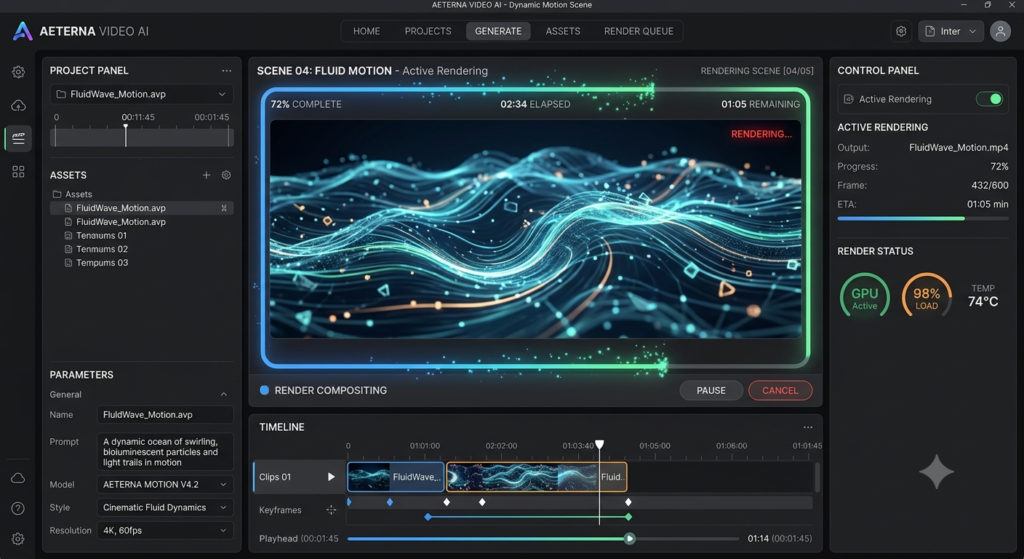
Firefly lets you change the look without rewriting your prompt. Try photorealistic for blog photos, watercolour for soft illustrations, 3D for playful graphics, and art or graphic styles for posters and social posts. Set the aspect ratio before you generate: use landscape for blog headers, square for social posts, and portrait for stories and Pinterest. You can also adjust colour, lighting and composition controls. If a style makes your image look too busy, simplify the prompt and let the style do the work.
Step 4: Refine, Upscale and Download
Once you have four results, click the one you like best and use the variation and edit options. Change one thing at a time — the background, the expression or the colours — so you can see what helped. Check hands, text and small details closely, because AI tools still make mistakes there. When you are happy, download the image at the largest size you need. Save the prompt with the file, so you can recreate a matching image later for the same blog or campaign.
Using Firefly Inside Photoshop, Express and Illustrator
Firefly is most useful when it stays inside your normal Adobe workflow. In Photoshop, you can use Generative Fill to extend a background, remove an object or add an element with a short prompt, without leaving your file. In Adobe Express, you can generate a social post, a banner or a thumbnail in minutes and add your own text and branding on top. In Illustrator, you can turn a prompt into vector-style artwork and illustrations that stay sharp at any size. This is why many bloggers and designers choose Firefly over a standalone generator: the image is only the first step, and the editing tools are already there.
Adobe Firefly vs Other AI Image Tools
Firefly, Midjourney and DALL-E all make AI images, but they suit different jobs. Midjourney is famous for artistic, detailed images, and DALL-E is easy to use inside ChatGPT, but Firefly stands out for commercial safety and for working inside Photoshop, Express and Illustrator. If you need a striking piece of art for inspiration, Midjourney may be your first choice. If you need a clean, usable image for a blog, a client or a product page, Firefly is often the safer and faster choice. This Adobe Firefly guide recommends trying Firefly first for publishable work, and using the other tools when you want a different artistic style.
Common Mistakes to Avoid
The most common mistake is writing a prompt that is too vague, then blaming the tool for a random result. Another is generating at the wrong size and then stretching a small image for a blog header, which makes it look soft. A third is publishing the first result without checking details, text and colours. Finally, many beginners use every style at once, which creates a messy image. Keep your prompt clear, set the size first, check the result closely, and change one setting at a time.
Frequently Asked Questions About Adobe Firefly
Is Adobe Firefly free? Yes, you can start with a free Adobe account and monthly generative credits, with more credits available on paid plans. Is Firefly safe for commercial use? Adobe designed Firefly for commercial use, with training on licensed and public-domain content, but always check the current terms for your project. Can I use Firefly images on my blog? Yes, that is one of its main uses, especially for headers, social images and illustrations. Do I need Photoshop to use Firefly? No, the web app works on its own, but Photoshop, Express and Illustrator make editing much easier.
Final Thoughts
Adobe Firefly is one of the easiest ways to create commercial-safe AI images for a blog, a business or a client project. Start with a clear prompt, choose a style that fits your brand, refine one detail at a time, and use Photoshop, Express or Illustrator to finish the image. With the steps in this Adobe Firefly guide, you can create your first image today and build a consistent look for everything you publish next.
Related AI Image Guides
If you want to compare tools before you choose one, keep exploring these guides:
- Midjourney Guide: How to Create Stunning AI Images Step by Step
- DALL-E Guide: Create AI Images Inside ChatGPT
- Leonardo AI Guide: Create Free AI Images for Your Blog
- A Comprehensive Guide to Free AI Tools
- Microsoft Copilot Explained: Your Free AI Assistant for Work and Study
- Adobe Firefly on Adobe.com