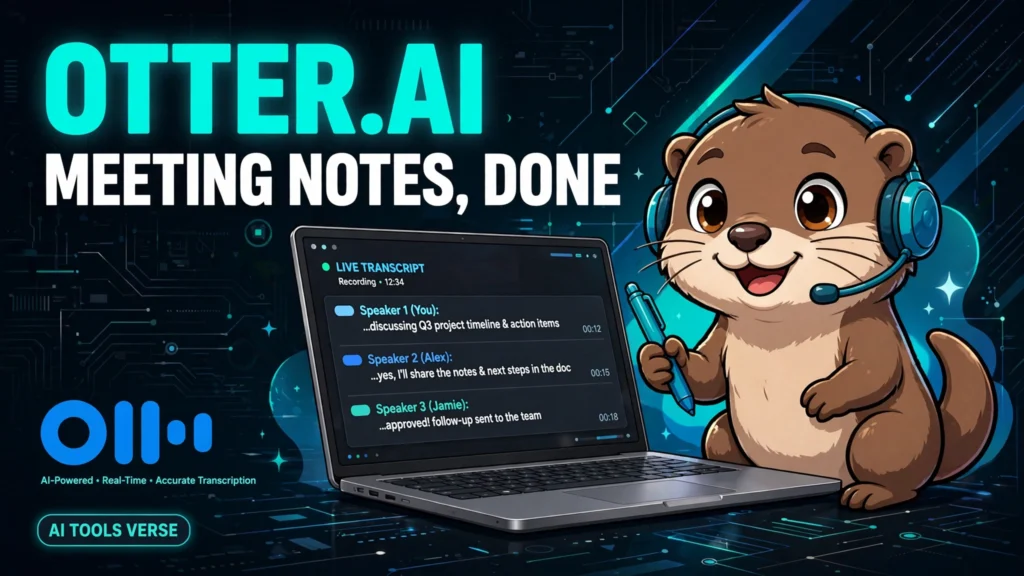
The meeting ended, everyone nodded, and then nobody could agree on what had actually been decided. I’ve lived that scene more times than I care to admit, and it’s the whole reason tools like Otter.ai exist, and this Otter.ai guide explains how it works. Otter records a meeting or a conversation, transcribes it into searchable text, and — on paid plans — pulls out a summary, action items and the key decisions, so the “wait, what did we agree?” message stops happening.
Here’s the simple version of how it works. You connect Otter to Zoom, Google Meet or Microsoft Teams, or you record audio directly in the app, and it joins or listens and types as people talk. Afterwards you get a transcript with speaker labels, timestamps and a playback bar, so you can click any sentence and hear exactly how it was said. That last feature matters more than people expect: a transcript is only trustworthy if you can check it against the audio in two seconds.
Setting it up without the faff
In this Otter.ai guide, start with one meeting, not your whole calendar. Install the app or the browser extension, connect just one calendar, and let Otter join a low-stakes call first — a team check-in, a study group, a planning chat. Watch what it captures and, more importantly, what it gets wrong. Names, accents, technical terms and overlapping speech are where every transcription tool struggles, and Otter is no exception.
A small habit makes a big difference: ask people to say their names when they join, and pause for a second before changing topic. It feels artificial for about a week, then it becomes normal, and your transcripts get noticeably cleaner. Also, tell people you’re recording. It’s polite, it’s usually required, and in many places it’s the law — and Otter shows a recording notice, so there’s no point trying to be subtle about it.
What Otter is genuinely good at
Search is the killer feature. Once a meeting is transcribed, you can search for a word — “budget”, “deadline”, a client’s name — and jump straight to every moment it came up. For freelancers juggling several clients, that’s gold: instead of re-listening to an hour-long call, you find the decision in ten seconds. Our guide to automate repetitive work makes the same point at a bigger scale — the tools that save time are usually the ones that remove searching, not the ones that add features. Our AI tools for freelancers guide covers similar time-saving tools for client work.
Summaries are the second win, with a caveat. Otter’s AI summary gives you a readable outline and a list of action items, which is perfect for a quick recap email. But treat it like a helpful colleague’s notes, not a contract: check the action items against the transcript before you send them to anyone. In our experience the summary gets the shape right and occasionally assigns a task to the wrong person — a two-minute check fixes that.

Accuracy, honestly
How accurate is Otter? On clear, one-at-a-time speech in a quiet room, very good — good enough to quote. On a noisy call with five people talking over each other, noticeably worse, and that’s true of every tool in this category, not just Otter. Strong accents, mumbling and jargon all cost accuracy, and the transcript will sometimes produce a confident-looking sentence that nobody actually said. The fix is boring but effective: skim the transcript while the meeting is still fresh, correct the important lines, and keep the audio attached so anyone can verify.
Privacy deserves a straight answer too. Meeting transcripts contain other people’s words, so think before you share a transcript widely, and check your organisation’s rules before recording client or student meetings. Otter lets you control sharing per transcript, which is the right granularity — share the summary with the team, keep the full transcript for yourself.
The free plan and when to pay
Otter’s free plan, as covered in this Otter.ai guide, gives you a monthly allowance of transcription minutes — enough to test it properly and to cover occasional meetings, but not enough for a heavy meeting schedule. If you hit the limit mid-month, that’s your signal: either you need the paid plan, or you’re recording meetings that could have been emails. Both conclusions are useful.
Paid plans add more minutes, advanced summaries, custom vocabulary (teach it your product names and it stops mangling them), and team features. The custom vocabulary alone is worth it if your work has unusual names — add them once and every future transcript improves.

A first-week routine that sticks
If you want Otter to become a habit rather than a novelty, this Otter.ai guide suggests giving it one deliberate week. On day one, record a single low-stakes meeting and spend ten minutes afterwards reading the transcript against your own memory of the call, correcting names and the two or three decisions that matter. On day two, use the search feature to find a decision from day one without re-reading the whole transcript — that one successful search is usually what convinces people the tool is worth keeping.
By day three, try the summary: send the AI summary to yourself, edit it in two minutes, and only then forward it. If by Friday you have forwarded two summaries and searched for a decision you would otherwise have forgotten, Otter has earned its place. If not, the honest conclusion may be that your meetings are too short or too few to need transcription, and that is useful knowledge too. This routine also fits the AI productivity system approach of planning your day in ten minutes.
Otter.ai guide: Frequently asked questions
Does Otter.ai work with Zoom and Google Meet?
Yes — it can join Zoom, Google Meet and Teams meetings, and you can also record audio directly in the app or upload audio files to transcribe.
Is Otter.ai accurate enough for professional notes?
For most meetings, yes, with a quick human check of the important decisions and action items. Don’t publish a transcript unchecked, especially for legal or financial discussions.
Can I use Otter.ai for free?
Yes, the free plan covers occasional use with a monthly minute limit. Regular meeting-heavy users will need a paid plan.
The test I keep coming back to in this Otter.ai guide is simple: after a meeting, can I find the decision in under a minute, a week later? With good notes, yes. With Otter, usually yes — and “usually” is a lot better than digging through a notebook wondering which page the decision was on.
Further reading: Otter.ai’s official site at https://otter.ai/ and Zoom’s meeting platform at https://zoom.us/
If you need a team-wide alternative with cross-meeting search and topic tracking, see our Fireflies.ai guide.